Step 2 - Manage Your Chatter Notification Emails
Click here for suggested email settings
Users with Salesforce.com license | Users with Chatter access only | Suggested Email Settings
Users with Salesforce.com license
By default, you will receive “Chatter Digests” via email on a daily basis. You will also receive emails when someone ‘follows’ you, performs some activities on your posts, comments on your posts etc. After you have joined some groups, all changes to these groups will be emailed to you as well.
To stop the above, you would need to manage your Chatter email settings.
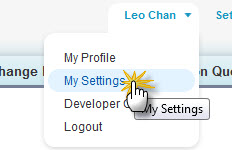
- To enter the My Settings page, click on your name → "My Settings"
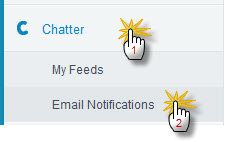
- On the left-hand column click on “Chatter” and then "Email Notifications"
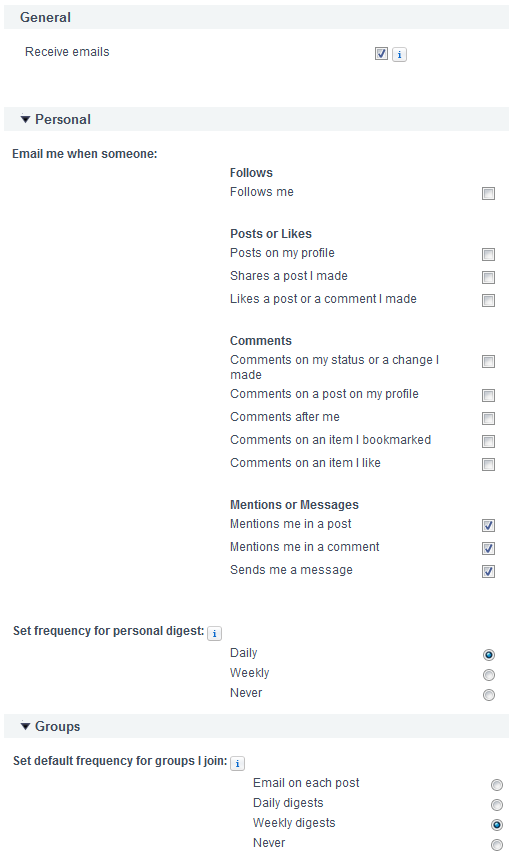
- You will be presented with the Chatter email settings page with the following options:
- General
Unchecking this box will stop ALL emails sent to you via Chatter. Recommended to keep this on and adjust the settings of other sections individually.
- Personal
- "Email me when someone": here you can decide what kind of action would trigger an email immediately sent to you.
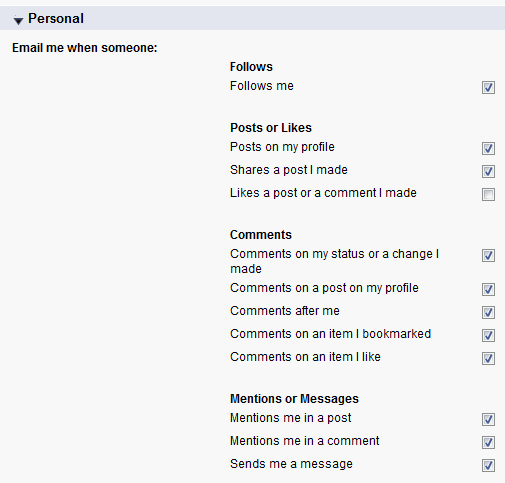
- "Set frequency for personal digest": here you can decide to receive a daily or weekly digest of the emails, or never receive any emails base on the actions above.

- "Email me when someone": here you can decide what kind of action would trigger an email immediately sent to you.
- Groups
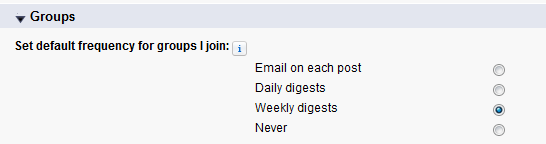
- "Set default frequency for groups I join": here you can set a default frequency of emails to be sent to you when you join a group.
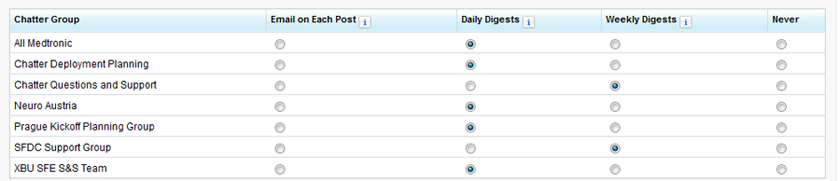
- Below this you will see a table of all the groups that you have joined. You can set the Chatter email frequency of each group individually here.
- "Set default frequency for groups I join": here you can set a default frequency of emails to be sent to you when you join a group.
- General
- Click “save” when done.
Users with Chatter access only
By default, you will receive “Chatter Digests” via email on a daily basis. You will also receive emails when someone ‘follows’ you, performs some activities on your posts, comments on your posts etc. After you have joined some groups, all changes to these groups will be emailed to you as well.
To stop the above, you would need to manage your Chatter email settings. This document provides step-by-step instructions on how to do so.
- To enter the setup page, click on your name → "Setup"
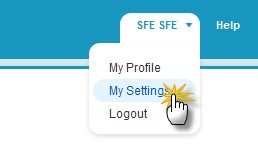
- In the pop-up box, click “Email Settings”
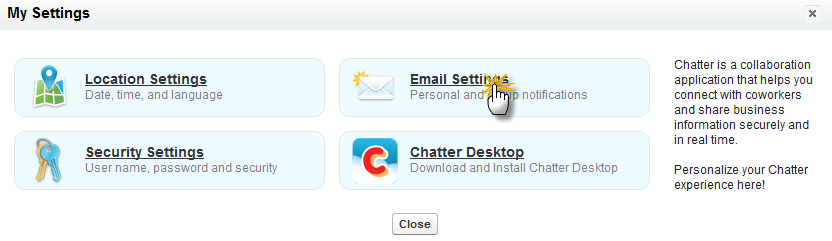
- You will be presented with the Chatter email settings page with the following options:
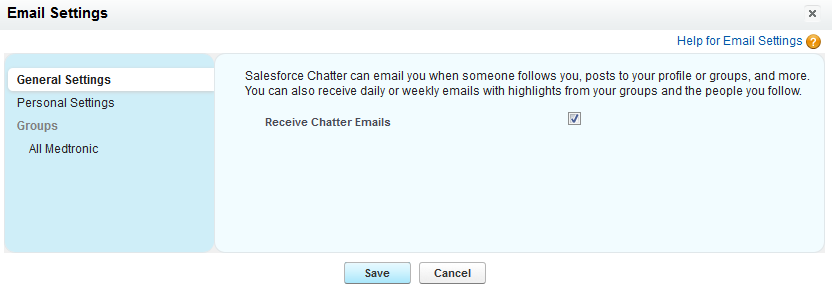
- General
Unchecking this box will stop ALL emails sent to you via Chatter. Recommended to keep this on and adjust the settings of other sections individually.

- Personal
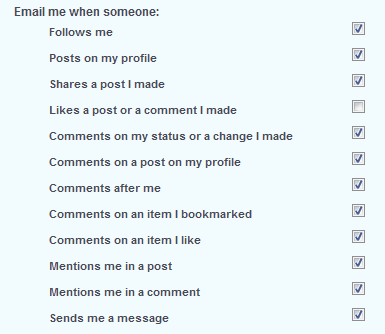
- "Email me when someone": here you can decide what kind of action would trigger an email immediately sent to you.
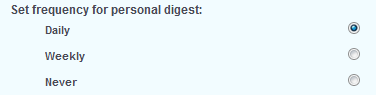
- "Set frequency for personal digest": here you can decide to receive a daily or weekly digest of the emails, or never receive any emails base on the actions above.
- "Email me when someone": here you can decide what kind of action would trigger an email immediately sent to you.
- Groups
- "Set default frequency for groups I join": here you can set a default frequency of emails to be sent to you when you join a group.
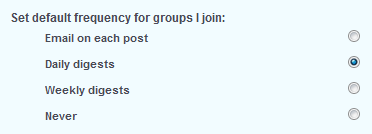
- On the left-hand column there will be a list of groups that you have joined. (There is only 1 group in the screenshot below.) Click on the group and select email notification settings for each group.
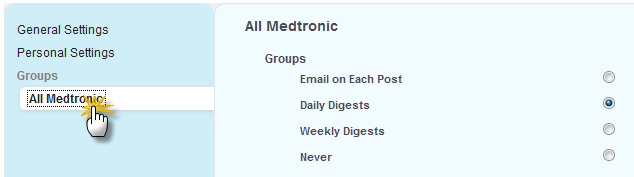
- "Set default frequency for groups I join": here you can set a default frequency of emails to be sent to you when you join a group.
- General
- Click “save” when done.
Suggested Email Settings